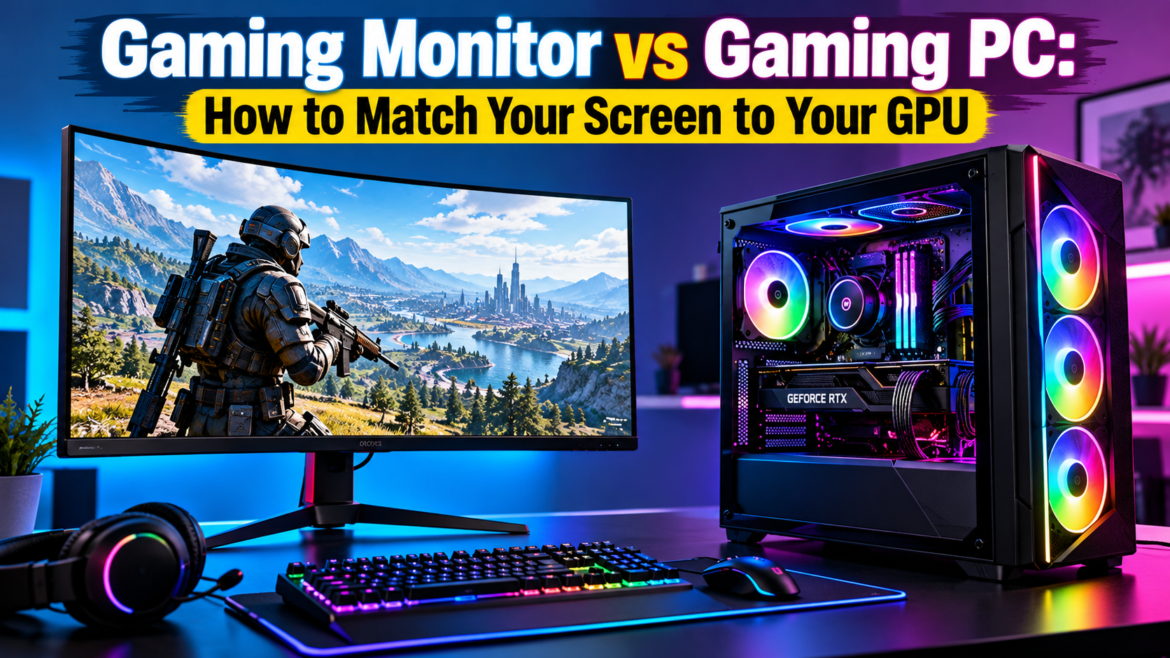
You can spend a fortune on a graphics card and still get disappointing results if the screen in front of you can’t show what it’s doing. The reverse happens too: a stunning 4K display on a modest card can turn smooth gameplay into a slideshow.
A gaming monitor and a gaming PC work as a pair. This guide shows how to match them so neither one holds the other back.
Why Your Monitor and GPU Must Work as a Team
A gaming monitor is a display built for games, with a fast refresh rate, low response time and features that keep motion smooth. Your graphics card (GPU) produces the frames, and the monitor shows them. If one outpaces the other, you pay for performance you never see.
Three specs decide how well they pair:
- Resolution: how many pixels the screen shows, which sets how hard the GPU has to work.
- Refresh rate: how many times per second the screen updates, measured in Hz.
- Frame rate: how many frames per second your GPU delivers in a given game.
Resolution: The Biggest Decision
Resolution is the main factor in GPU workload. More pixels mean more work per frame.
- 1080p (Full HD): The easiest to drive. Entry-level and mid-range cards handle it well, and it’s popular for esports.
- 1440p (QHD): A popular middle ground with a sharper image than 1080p. It needs a stronger mid-range or upper-range card.
- 4K (UHD): The most detailed and the most demanding. It calls for a high-end GPU if you want smooth frame rates in recent games.
Common mistake: Buying a 4K screen because it sounds like an upgrade, then lowering game settings to cope. A sharp 1440p panel running smoothly often looks better in practice than a 4K panel struggling.
Refresh Rate: Where Smoothness Comes From
Refresh rate is how often the screen redraws the image each second. A 60Hz screen can display at most 60 frames per second, however many frames the GPU produces. Higher rates such as 144Hz, 165Hz or 240Hz show motion more fluidly, which helps in fast shooters and competitive games.
Did you know? If your GPU produces 200 frames per second but your monitor refreshes at 60Hz, you only see 60 of them. The extra performance is wasted until the screen can keep up.
The sensible approach is to choose a refresh rate your GPU can realistically reach in the games you play. A 240Hz gaming monitor only makes sense if your PC can push frame rates anywhere near that figure.
Matching Screen to GPU: A Practical Guide
| GPU level | Resolution to aim for | Refresh rate to aim for | Typical use |
| Entry-level | 1080p | 60-144Hz | Casual and esports titles |
| Mid-range | 1080p high refresh or 1440p | 144-165Hz | Most modern games |
| Upper mid-range | 1440p | 144Hz and above | High settings, smooth play |
| High-end | 1440p high refresh or 4K | 144Hz and above | Demanding, visually rich games |
These are starting points. Game choice matters as much as hardware. Lightweight esports titles run fast on modest cards, while the latest open-world releases can strain even strong ones.
Other Specs Worth Checking
Response time. This measures how quickly pixels change colour. Slow response can cause blur or ghosting in fast scenes, so check it alongside refresh rate.
Adaptive sync. Technologies such as G-Sync and FreeSync keep the screen and GPU in step, which reduces tearing and stutter. Check that your monitor supports the sync type your graphics card uses.
Panel type. IPS panels tend to offer strong colours and wide viewing angles, VA panels often deliver deeper contrast, and OLED offers striking contrast and fast response at a higher price. Pick based on what you value most.
Size. Screen size should suit your resolution and desk. A very large 1080p screen can look soft, while a small 4K screen may waste detail.
Connections. Make sure the ports on your monitor match your GPU’s outputs and support your target refresh rate. DisplayPort is a common choice for high refresh rates.
Pro tip: Before buying any screen, check that your cable and port can carry the resolution and refresh rate you want. A great display on the wrong cable can run below its potential.
How to Choose the Best Gaming Monitor for Your Setup
There’s no single best gaming monitor for everyone. The best one fits your GPU, your games and your desk. Work through it in order:
- Identify your GPU and the resolution it can comfortably drive.
- Choose a refresh rate it can approach in your favourite games.
- Pick a panel type that suits how you play.
- Check adaptive sync, ports and response time.
- Set a budget that leaves room for the rest of your setup.
If you shop for a gaming monitor UK retailers stock, check delivery terms, warranty cover and returns as well as specs. A screen is a long-term purchase, and good aftercare protects it.
Expert insight: From watching how buyers pair parts, the most disappointed customers rarely have a bad monitor or a bad GPU. They have a mismatch, such as a high-end card driving a 60Hz screen or a modest card pushed to 4K. Matching the two first usually matters more than upgrading either one.
Buying the Screen and the PC Together
Choosing parts separately works, but it leaves you to check every pairing yourself. Buying a gaming pc and monitor from the same supplier simplifies it. Veno Scorp groups its gaming PCs by resolution, with ranges for 1080p, 1440p and 4K, so you can see which systems suit which screens. It also sells monitors alongside PCs and offers bundles for buyers who want the display, keyboard and mouse sorted in one purchase.
Quick Checklist Before You Buy
- What GPU does my gaming pc have, or which one am I buying?
- Which resolution can it run comfortably in my games?
- Does the monitor’s refresh rate match what the GPU can deliver?
- Is adaptive sync supported on both sides?
- Do the cable and ports support the resolution and refresh rate?
- Is the warranty clear, and is support based in the UK?
Ready to Match Your Gaming Monitor? Explore Veno Scorp Today
A great setup isn’t the most expensive screen or the strongest graphics card. It’s the pair that works together. Match the resolution to your GPU, choose a refresh rate it can handle and check the supporting specifications. Contact Us at Veno Scorp for help choosing the right gaming monitor for your PC and gaming needs.
FAQs
- What resolution gaming monitor should I buy for my GPU?
Entry-level cards suit 1080p, mid-range cards often handle 1440p, and high-end cards are best for 4K. Check how your GPU performs in the games you play before deciding. - Is a higher refresh rate always better?
Only if your GPU can reach it. A 240Hz screen gains little if your PC delivers far fewer frames. Match the refresh rate to your realistic frame rates. - Can a gaming monitor bottleneck my gaming PC?
Yes. A 60Hz screen can hide the extra frames a strong GPU produces, and a low-resolution screen can waste a powerful card. Pairing them sensibly avoids this. - Do I need G-Sync or FreeSync?
It isn’t essential, but adaptive sync reduces tearing and stutter and is worth having on a gaming monitor. Check compatibility with your graphics card. - Can I buy a gaming PC and monitor together in the UK?
Yes. Many UK retailers sell them as bundles. Veno Scorp offers bundles and also supports finance through Klarna, subject to approval, for UK customers aged 18 and over.